
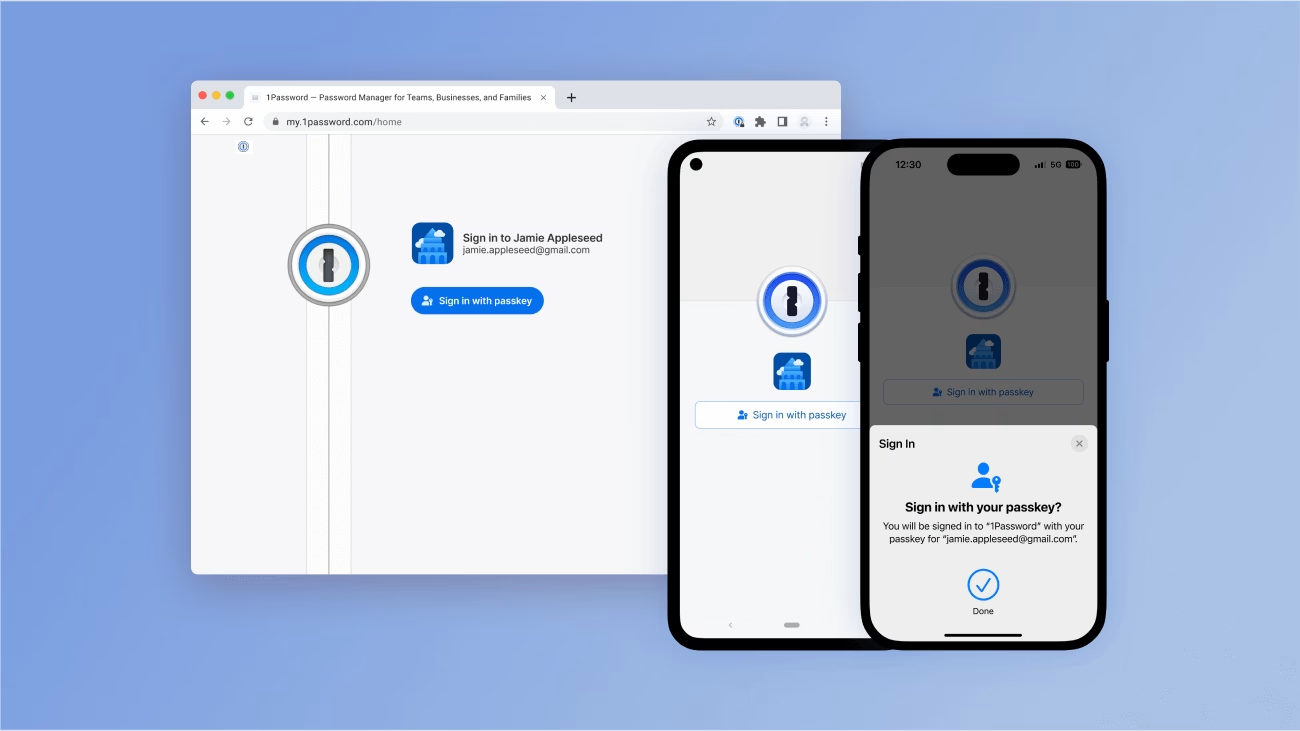
Unlocking Passwordless Security: A Comprehensive Guide to 1Password Passkey Integration in Windows 11
The digital world is slowly but surely moving beyond the traditional password, and passkeys are leading the charge. With a new, seamless integration, 1Password now allows you to save, manage, and use passkeys directly within Windows 11, marking a significant stride towards a truly passwordless and phishing-resistant future. This guide will walk you through enabling and utilizing this powerful feature, ensuring your digital life is both more secure and remarkably convenient.
This system-level integration isn't just another feature; it’s a foundational shift. By leveraging Microsoft's latest updates and APIs, 1Password becomes the first third-party password manager to embed passkey management so deeply into Windows 11. This means enhanced security through cryptographic authentication and a streamlined user experience, all secured by Windows Hello.
Essential Prerequisites for Seamless Passkey Management
Before diving into the setup, there are a couple of crucial prerequisites you need to meet. It's like preparing your workspace before a big project; getting these right makes everything else flow smoothly.
-
Windows 11 Version: You'll need to be running the latest version of Windows 11. While broader rollout is expected soon, early access was available via the Insider Preview Build 26200.5670 or later. So, make sure your operating system is up-to-date.
-
1Password Application: Ensure you have the most current MSIX version of the 1Password app for Windows installed. Outdated versions simply won't have the necessary hooks for this integration to work. Keeping your applications updated is a basic security practice, and it's particularly important here.
Step-by-Step Guide: Setting Up and Using 1Password Passkeys
Getting started with 1Password passkeys in Windows 11 is a straightforward process, broken down into a few manageable steps. Just follow along, and you'll be enjoying enhanced security in no time.
Enabling Passkey Integration in 1Password
First things first, you need to tell 1Password that you want to start seeing those passkey suggestions.
-
Open 1Password: Launch the 1Password application on your Windows 11 device.
-
Navigate to Settings: Locate and click on the
Settingsoption, usually found in the lower-left corner or through a menu icon. -
Access Autofill: Within the settings menu, select
Autofill. -
Toggle Passkey Suggestions: You'll find a setting labeled "Show passkey suggestions." Simply enable this setting. This tells 1Password to actively look for opportunities to use and save passkeys.
Making 1Password Your Default Passkey Manager
This is a critical step if you want all new passkeys to be handled by 1Password, rather than Windows' built-in credential manager.
-
Open Windows Settings: You can do this by clicking the Start button and selecting the gear icon, or by pressing
Win + I. -
Go to Accounts: In the Windows Settings window, click on
Accountsin the left-hand navigation pane. -
Select Passkeys: Within the
Accountssection, find and click onPasskeys. -
Advanced Options: Look for and select
Advanced options. -
Set 1Password as Authenticator: Here, you'll see options for system authenticators. Toggle on 1Password to set it as your default passkey manager. All new passkeys will now automatically flow into 1Password. Quite convenient, isn't it?
Creating and Saving a Passkey
Now that everything's configured, let's create your first passkey. This process is surprisingly similar to saving a password, but with a crucial security upgrade.
-
Visit a Supported Website: Navigate to any website that offers passkey support for account creation or login. Many services are adopting this, so keep an eye out.
-
Choose to Create a Passkey: On the website, select the option to create a passkey for your account. This is usually found within your account security settings.
-
Select 1Password: When Windows prompts you to choose a credential manager, select 1Password from the available options.
-
Authenticate with Windows Hello: Windows 11 will then ask you to verify your identity using Windows Hello. This could involve your fingerprint, facial recognition, or your device's PIN. This biometric verification is what makes passkeys so robust against phishing.
-
Passkey Saved: Once authenticated, the passkey will be securely saved directly into your 1Password vault. Easy as pie!
Signing In Using a Passkey
Logging in with a passkey is even simpler than creating one. Forget typing complex passwords!
-
Go to a Supported Website: Head to a website where you've previously saved a passkey with 1Password.
-
Choose Passkey Login: On the login page, select the option to sign in with a passkey.
-
Select Passkey from 1Password: Windows will present you with the relevant passkey from your 1Password vault. Select it.
-
Authenticate with Windows Hello: Once again, use Windows Hello to verify your identity. The login will then complete instantly. It truly speeds up your workflow.
Managing and Deleting Passkeys
Passkeys, like passwords, need to be managed. 1Password gives you robust tools for this.
-
View and Edit: Within the 1Password app, passkeys are stored as part of your login items. You can view, edit, move, or even share them as you would any other credential.
-
Deleting a Passkey: To delete a passkey, simply edit the corresponding login item in 1Password and remove the passkey field. A vital note here: Deleting a passkey from 1Password only removes it from your vault; it doesn't revoke access on the website itself. For that, you'll need to follow the specific steps provided by the website to fully remove the passkey as an authentication method.
Optimizing Your Passkey Experience: Best Practices and Expert Advice
To get the most out of your 1Password passkey integration, consider these expert recommendations.
-
Keep Everything Updated: Regularly update both your Windows 11 operating system and the 1Password application. Updates often include critical security patches and new features, ensuring optimal performance and protection.
-
Leverage Biometric Authentication: While a PIN works with Windows Hello, using biometric options like fingerprint or facial recognition offers a superior level of security and convenience. It's harder for someone to spoof your face or finger than guess a PIN.
-
Set Up Recovery Options: Always ensure you have robust recovery options configured in your 1Password account. This is crucial if you ever lose access to a device or forget your master password.
-
Test on Supported Sites: Not every website supports passkeys yet. Utilize 1Password's Watchtower feature, which can often identify compatible accounts, helping you transition more of your logins.
-
Stay Informed on Microsoft Updates: Microsoft is actively developing and expanding passkey support. Keeping an eye on their announcements means you'll be ready for new features and wider third-party integration as they roll out. The landscape is evolving quickly.
Troubleshooting Common Passkey Issues
Sometimes things don't go exactly as planned. Here are some solutions to common issues you might encounter.
-
Passkey Option Not Appearing: If a website isn't offering a passkey option, first double-check that both your Windows 11 and 1Password app are fully updated. Next, confirm that 1Password is indeed set as your default passkey manager within Windows settings.
-
Authentication Failures: If Windows Hello authentication repeatedly fails, verify your Windows Hello configuration. Make sure your biometric devices (fingerprint reader, camera for facial recognition) are clean, properly connected, and functioning correctly.
-
Passkeys Not Syncing: If your passkeys aren't syncing across devices, ensure you are signed into the exact same 1Password account on all devices. Also, confirm that synchronization is enabled within your 1Password settings.
Availability and Pricing
This innovative passkey integration was initially made available for testing in mid-2025 through the Windows Insider Dev Channel (Build 26200.5670). General availability for all Windows 11 users is expected to roll out in late 2025. This isn't an add-on that costs extra either. The feature comes at no additional cost for existing 1Password subscribers, with individual plans remaining at $2.99/month and family plans at $4.99/month, as of November 2025.
By bringing passkey management directly into the operating system, 1Password and Windows 11 are providing a highly secure, user-friendly, and future-proof solution for managing your digital credentials. It's a significant leap forward in making passwordless authentication a reality for everyone.