
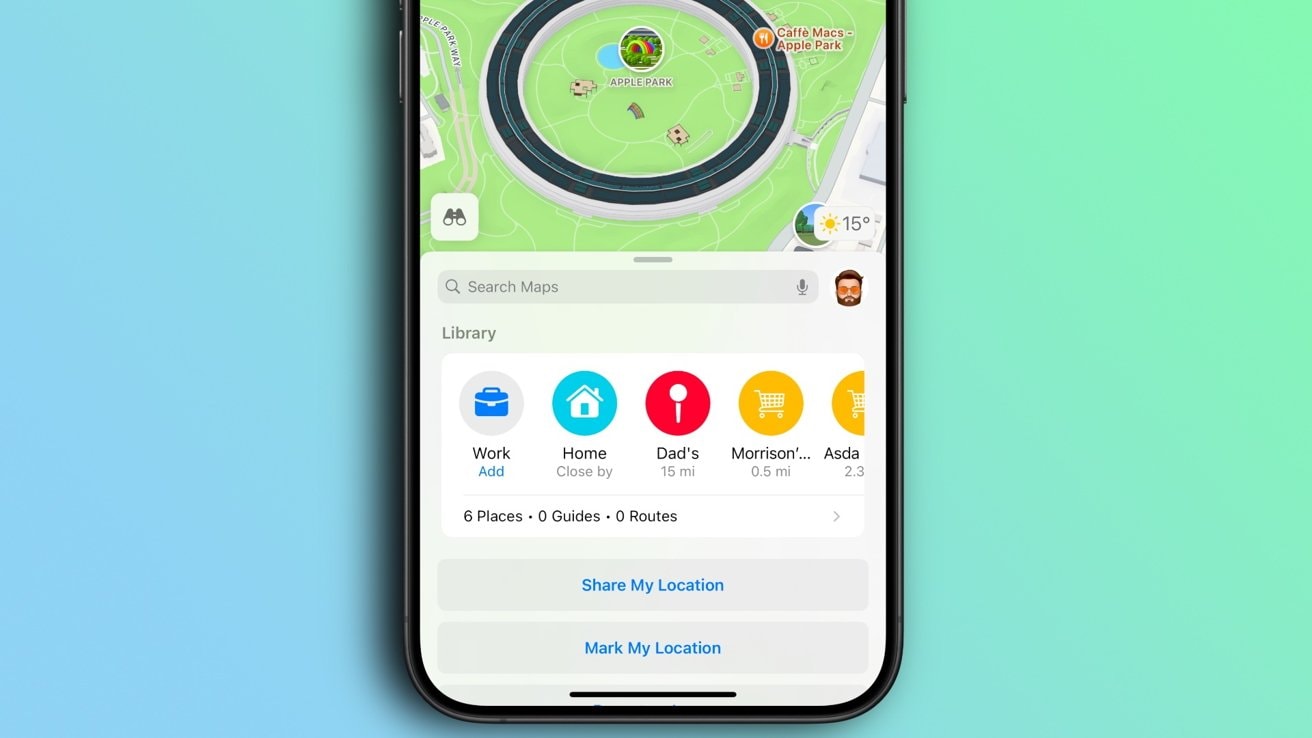
With the release of iOS 18, Apple Maps has significantly streamlined how users manage their saved data through the introduced Library feature. This centralized hub consolidates your Pinned locations, Places, Guides, and Routes into a single, easy-to-navigate interface. Rather than searching through disparate menus, you can now access all your saved content in one location.
This guide details how to effectively navigate, organize, and utilize the Library feature to enhance your navigation experience.
Accessing and Navigating the Library
The Library serves as the new home for all your saved content. When you open the Maps app on an iPhone running iOS 18 or later, you will find the Library section prominently displayed. It automatically incorporates previously saved locations, offering a comprehensive view of your favorite spots without requiring manual migration.
Viewing and Sorting Your Content
Once you have accessed the Library section, you can organize your data to suit your current needs. The interface supports advanced sorting and viewing options:
-
Access Collections: You can individually search through your Pinned, Places, Guides, and Routes collections.
-
Sort Items: Tap the three-dot button within a collection. You can sort your saved items by:
-
Date Added
-
Name
-
Distance
- Change Layout: The same menu allows you to toggle between a list view and a grid view, letting you customize how your saved items are displayed visually.
Adding Locations to Your Library
Building your library is straightforward, with multiple methods available depending on whether you are browsing the map or organizing specifically within the Library menu.
Using the Add Button
For quick additions directly from the Library interface:
-
Navigate to the Library section of the Maps app.
-
Tap the + (Add) button. Note that you may need to swipe left within the interface to reveal this option if it is not immediately visible.
-
Search for the location you wish to save and select it to add it to your library.
Adding from a Place Card
When you are exploring the map or have selected a specific destination:
-
Tap on a location to open its Place Card.
-
Tap the + button on the card to add the location directly to your library.
-
Alternatively, tap the More (...) button, then select Add to Guides to place it into a specific collection immediately.
-
iOS 18 also introduces the ability to add personal notes to these locations, helpful for remembering gate codes, parking tips, or specific details about a venue.
Creating and Managing Custom Guides
Guides are a powerful subset of the Library feature, allowing you to group locations—such as "Vacation Spots" or "Favorite Restaurants"—together.
How to Create a New Guide
-
In the Maps app, scroll to the Library section.
-
Tap on Guides.
-
Tap the New Guide icon.
-
Enter a name for your guide.
-
Tap the camera icon to add a cover image from your photo library, giving your guide a visual identity.
-
Tap Create to finalize the folder.
Editing an Existing Guide
You can maintain your guides by updating their contents or appearance at any time:
-
Go to Library > Guides and tap the guide you wish to edit.
-
Tap Edit at the bottom of the guide card.
-
From here, you can:
-
Change the Title: Rename the guide.
-
Update Visuals: Change the cover image.
-
Remove Places: Delete locations no longer needed.
- Tap the Done button (top right) to save your changes.
Sharing Guides
Collaboration is a key feature of Apple Maps Guides. To share your curated list with friends or family:
-
Navigate to Library > Guides and select the specific guide.
-
Tap the Share icon at the bottom of the guide card.
-
Select Share Guide and choose your preferred method (e.g., Messages, Mail) to send it.
Removing a Guide
If a guide is no longer useful:
-
Go to Library > Guides.
-
Swipe left on the guide you want to remove.
-
Tap Delete.
Saving Custom Routes
A significant addition in iOS 18 is the ability to save specific routes directly to your Library. This differs from saving a destination; it saves the path itself.
To use this feature:
-
Create a route as you normally would.
-
Save the route to your Library for future access.
Organizing with Pinned Locations
For your most frequently visited spots, "Pinned" locations offer the fastest access.
-
Open the Maps app and locate the Library section.
-
Select Pinned or Favorites.
-
To pin a new place, you can find it on the map, tap the More (...) button, and select Pin.
These pinned locations appear at the top of your library content, ensuring that your home, work, or daily coffee stop is always just one tap away.
Summary
The Apple Maps Library feature in iOS 18 transforms the app from a simple navigation tool into a personalized travel manager. By centralizing Guides, Pinned locations, Places, and Routes, Apple has reduced the friction in finding saved content. Whether you are sorting your favorite restaurants by distance, creating a shared travel guide for a group trip, or saving a custom route for a weekend drive, the Library serves as the foundational tool for organizing your geospatial data.