
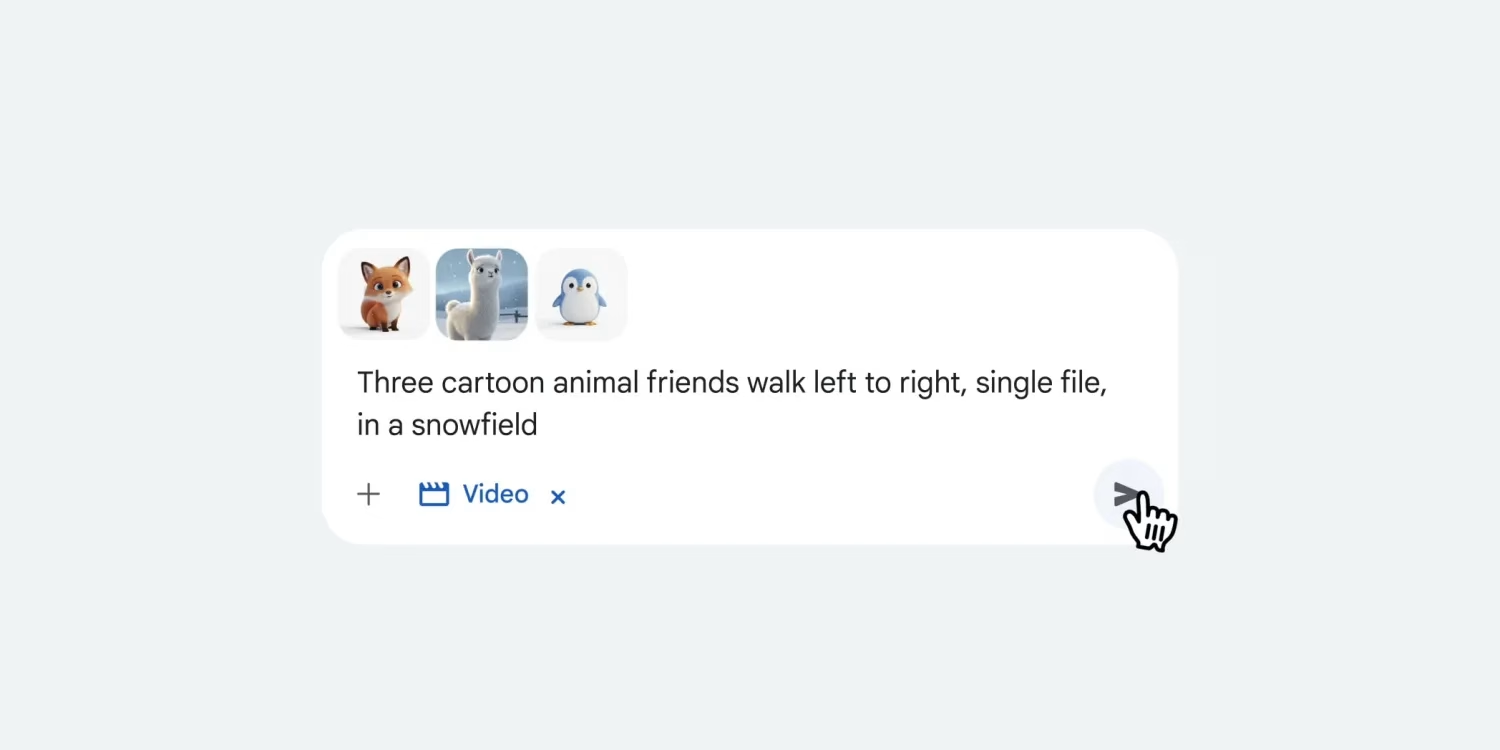
Google is rolling out an exciting update for its Gemini app today, ushering in a significantly more intuitive and powerful way to generate videos from your photos. The new "Ingredients to Video" feature, powered by the advanced Veo 3.1 model, allows users to inject specific visual elements directly into their video creation prompts, promising a level of control and realism previously unattainable. This isn't just about turning a static image into motion; it's about guiding the AI with visual cues to shape the output exactly as you envision it.
Prerequisites: Getting Started with Gemini's Enhanced Video Creation
Before you dive into transforming your photos into dynamic videos, there are a few essential requirements to consider. This powerful new capability isn't available to everyone just yet, so let's ensure you're all set.
First off, access to "Ingredients to Video" is currently exclusive to Google AI Pro and Ultra subscribers. If you’re subscribed, you’re in luck! This rollout has already commenced, and wider access is anticipated to be complete next week for these subscriber tiers. You'll need to be signed into your Gemini Apps to use the feature, which is a fairly standard step, but important nonetheless. The feature is making its way to both Android and iOS devices, with version 1.2025.4470002 of the Gemini app indicating that photo-to-video generation using Veo 3.1 is now globally available.
However, there are some regional considerations: the ability to generate a video from a photo is not currently available in the European Economic Area, Switzerland, or the United Kingdom. So, if you're in one of these regions, you might need to wait a bit longer for this specific functionality. Once you meet these criteria, you're ready to start experimenting with Google's cutting-edge AI video generation.
Understanding "Visual Ingredients" and Veo 3.1
So, what exactly are these "visual ingredients" and how do they work their magic? Essentially, Google is upgrading the way its generative tools understand your creative intent. Instead of relying solely on text descriptions, you can now upload up to three reference images alongside your text prompt. These images act as "ingredients," providing Veo 3.1—Gemini's state-of-the-art video generation model—with concrete visual examples to guide its output.
The beauty of this approach lies in its ability to control specific aspects of the generated video. You can use these reference images to dictate the characters that appear, the objects within the scene, and even the overall style of the video. Think about it: if you have a specific character design in mind, or a unique artistic style you want to apply, a reference image communicates that far more effectively than words alone. This capability extends to "style transfer," where the AI can apply textures, lighting, or the artistic style from your reference image to the entire video. It also facilitates "world-building," ensuring that objects and scenes within your video adhere to a custom aesthetic defined by your visual references. This is a game-changer for creators looking for precision.
Step-by-Step Guide: Generating Videos with Visual Ingredients
Ready to turn your still images into captivating short videos? Here’s a practical, step-by-step guide to leveraging the "Ingredients to Video" feature in the Gemini app.
-
Launch the Gemini App: Ensure you have the latest version of the Gemini app installed on your Android or iOS device. Open it up and sign in with your Google AI Pro or Ultra subscribed account.
-
Access the Video Generation Tool: Within the Gemini app, look for the prompt bar. You’ll find a "video" button there. If you don't see it immediately, tap the button with three dots to reveal more options, and the video generation feature should be available.
-
Upload Your Visual Ingredients: This is where the new magic happens. You'll be prompted to upload your reference images. You can select up to three images that embody the characters, objects, or specific style you want to integrate into your video. These could be photos, illustrations, or even other AI-generated images.
-
Craft Your Detailed Text Prompt: While your images provide visual guidance, a precise text prompt remains crucial. Describe the scene, actions, and any additional elements you want to include. For example, if you uploaded an image of a red abstract painting, your prompt might be: "Animate this painting with shimmering lights and slow, flowing movement, depicting an otherworldly landscape." Don’t be afraid to be specific; adding camera control instructions can lead to even better results.
-
Generate Your Video: Once your images are uploaded and your prompt is refined, initiate the generation process. Gemini, powered by Veo 3.1, will process your inputs to create an 8-second video clip complete with sound.
-
Review and Refine: The generated video will include a visible watermark, along with an invisible SynthID digital watermark, indicating it's AI-generated. Review the output. If it's not quite what you envisioned, tweak your prompt or swap out reference images and try again. Sometimes, a slight change in wording or a different visual ingredient can dramatically alter the outcome.
Maximizing Your Creations: Tips and Advanced Techniques
Using visual ingredients can significantly enhance your video generation, but a few expert tips can help you achieve truly outstanding results.
Important Considerations for Responsible AI Use
As with any powerful generative AI tool, there are important considerations to keep in mind to ensure a positive and responsible creative experience.
This update represents a significant leap forward in making generative video creation more precise and user-friendly. By blending the descriptive power of text with the illustrative strength of images, Gemini is putting a truly personal movie studio right into your hands.